Showing posts with label Iphone. Show all posts

Thursday, 15 August 2024

How to Download & Install iOS 18 Public Beta on iPhone

August 15, 2024

 A few months ago, Apple made iOS 18 Developer Beta available for testing. Now, it’s rolling out the iOS 18 Public Beta to compatible iPhones.

iOS 18 Public Beta is Out Now

After making the developer beta version available for some time, Apple plans to release its first public beta version of iOS 18.

If you’re wondering what’s different between the Developer and Public Beta, let me tell you that the Developer Beta version is meant for app developers and has more bugs, glitches, and stability issues.

On the other hand, the Public Beta versions of iOS have fewer bugs and glitches and are more stable. The iOS 18 Public Beta is designed for regular iPhone users who want to enjoy the new features.

How to Download & Install iOS 18 Public Beta

The public beta versions of iOS are usually rolled out after a few months of Developer Beta, and installing them is easier.

Before you download and install iOS 18 Public Beta on your iPhone, please remember that Beta software is not the final release; it may have bugs and glitches that may affect your iPhone’s performance and battery life.

Apple itself strongly recommends installing the Beta Software Program on a secondary system or device. Here’s how you can install iOS 18 Public Beta on your iPhone.

1. To get started, open your favorite desktop web browser and visit this webpage.

2. Next, click the Sign Up button and use your Apple ID.
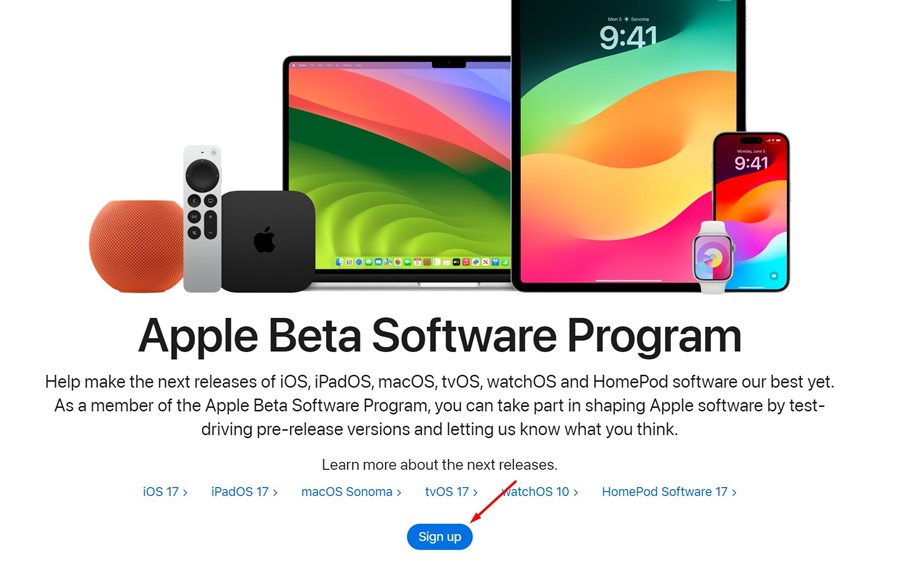
Sign up

3. Next, Agree to the Apple Beta Software Program Agreement.
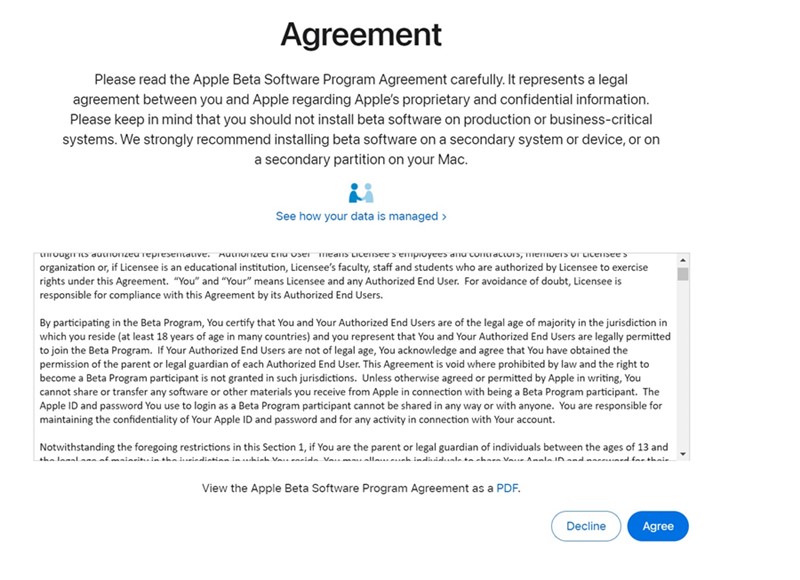
Agree

4. After enrolling your device to the Beta Program, switch to your iPhone.

5. Open the Settings app on your iPhone.
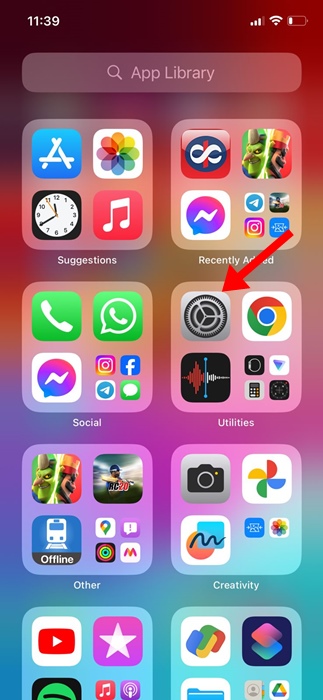
Settings

6. On iPhone Settings, scroll down and tap on General.

General

7. On the General screen, tap on Software Update.

Software Update

8. On the Software Update screen, tap on Beta Updates.

Beta Updates

9. Select the iOS 18 Public Beta.

iOS 18 Public Beta

10. The iOS 18 Beta update will appear. Tap on Update Now button.

Update Now

This article explains how to download and install iOS 18 Public Beta on iPhone. If you need more help installing it, let us know in the comments. Also, if you find this guide helpful, don’t forget to share it with your friends.

Wednesday, 14 August 2024

How to Fix Streaming Apps Not Working on Cellular Data on iPhone

August 14, 2024

 While iPhones are less prone to errors than Android, they can sometimes run into problems. One of the problems many users have been facing recently is streaming services not working on cellular data.

According to the users, streaming services like YouTube, Prime Video, Hulu, etc, only work on WiFi, and as soon as WiFi gets disconnected, the streaming apps stop. So, what’s the reason for streaming services not working without connecting to WiFi on iPhone?

Actually, the streaming services stop working when your iPhone switches to cellular data. The problem relies on your iPhone’s Cellular data settings that stop the streaming apps from functioning.

How to Fix Streaming Apps Not Working on Cellular Data on iPhone

If you are facing a similar issue, continue reading the article. Below, we have shared some simple ways to fix streaming services not working on cellular data on iPhone. Let’s get started.

1. Make sure your cellular data is working

When you disconnect a WiFi network, your iPhone automatically switches to the Cellular data.

So, chances are that the cellular data of your iPhone is not working; hence, disconnecting the WiFi network immediately disconnects the streaming services.

Hence, you need to ensure that your mobile data is working and stable. You can open sites like fast.com from the Safari web browser to check if mobile data is working & what its speed is.

2. Restart your iPhone

Restart

If your cellular data is still working and the streaming apps stop working, it’s time to restart your iPhone.

Chances are that there’s a bug or glitch in iOS that may be preventing the streaming apps from using your mobile data.

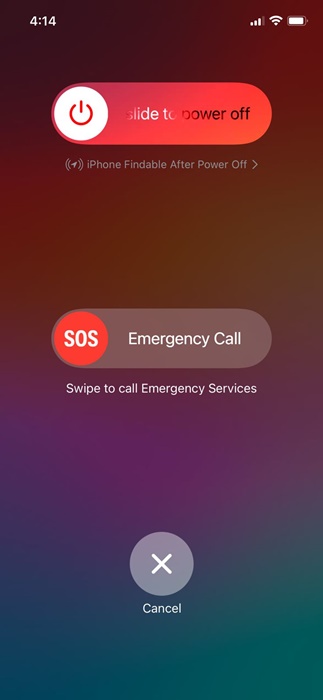
You can get rid of such bugs or glitches by restarting your iPhone. To restart, long press the Volume Up + Power button of your iPhone. The Power menu will appear; slide to Power off.

Once powered off, wait a few seconds and then turn on your iPhone. This should fix the issue you’re facing.

3. Turn off Screen Time on iPhone

Screen Time of iPhone has a feature that lets you limit app usage. There are possibilities that restrictions are set up in the Settings for ScreenTime. If you cannot recall any changes you have made to ScreenTime, it’s best to turn off the feature temporarily.

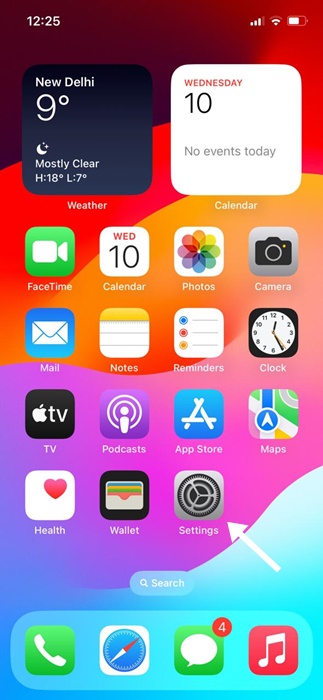
1. Open the Settings app on your iPhone.

Settings

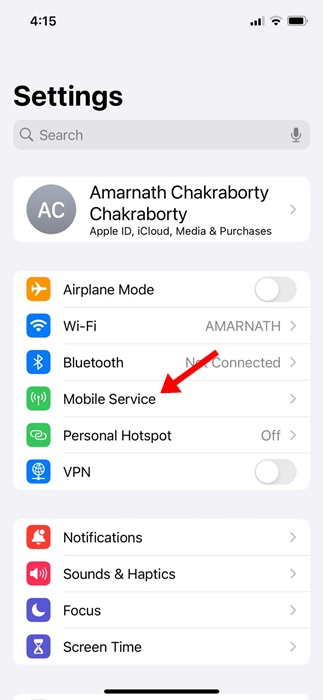
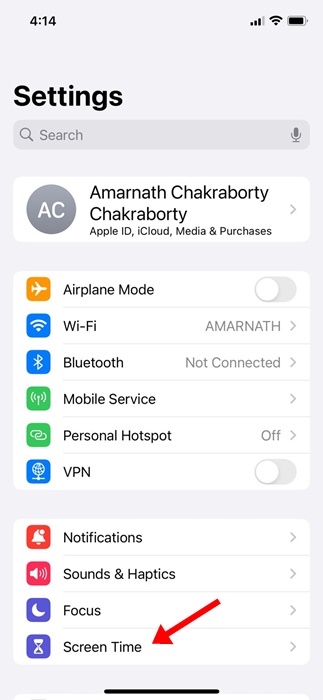
2. When the Settings app opens, tap on Screen Time.

Mobile Services

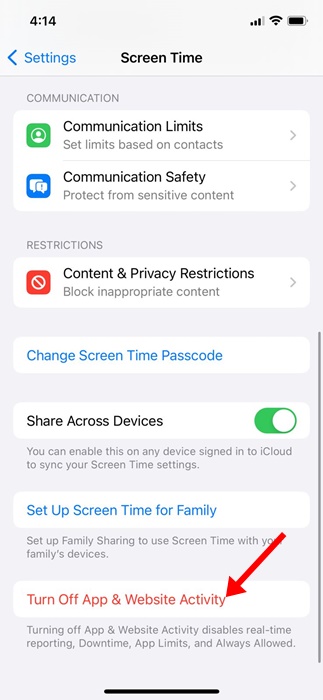
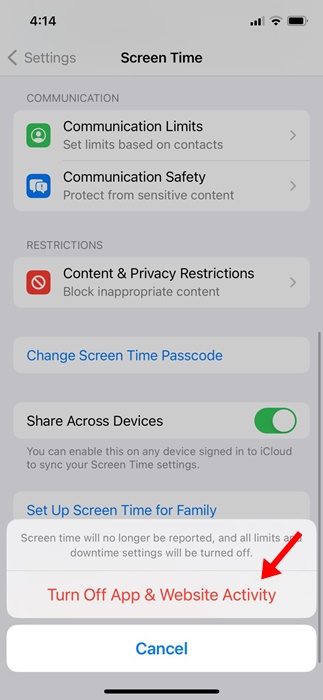
3. On the Screen Time screen, scroll down to the bottom and tap on Turn Off App & Website Activity.

Turn Off App & Website Activity

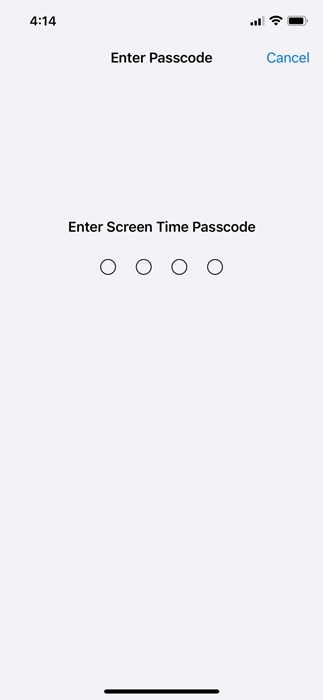
4. Now, you will be asked to enter your iPhone passcode. Enter it.

enter your iPhone passcode

5. On the confirmation prompt, tap Turn Off App & Website Activity again.

Turn Off App & Website Activity

This will disable Screen Time on your iPhone. Once disabled, try running the streaming apps again.

4. Check if the Streaming App is Allowed to Use Cellular Data

iPhone allows you to check which apps are using your mobile data and how much bandwidth they have used and allows you to prevent apps from using your cellular data.

So, you need to check whether the streaming app that isn’t working without active WiFi can use your Cellular data. If it’s not allowed, you can allow it to use the cellular data to fix the problem.

1. To get started, open the Settings app on your iPhone.

Settings

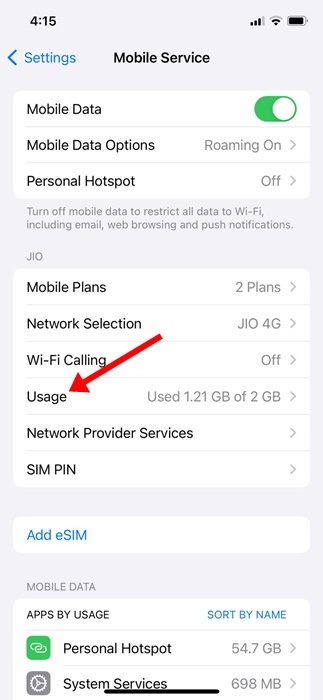
2. When the Settings app opens, tap on the Mobile Services or Cellular Data.

Mobile Services

3. On the Cellular Data screen, scroll down to see how much data you’ve used while connected to mobile internet.

Cellular Data screen

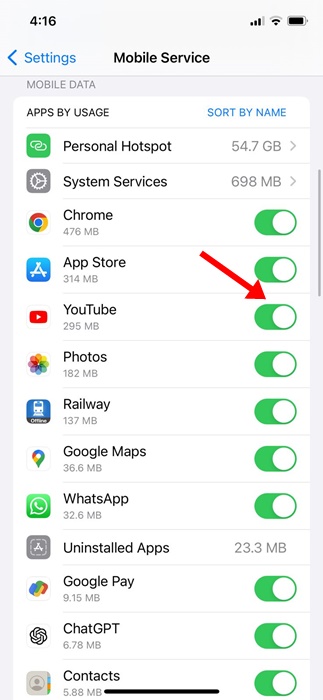
4. Scroll down more to find all apps that are using the mobile data.

5. You must find the app that stops the streaming service once WiFi is disconnected. You must find the app and ensure it can use the mobile data.

ensure it can use the mobile data

This is how you can check if the streaming app can use cellular data via iPhone Settings.

These are the best ways to fix streaming apps not working without WiFi on iPhones. If you need more help troubleshooting iPhone streaming issues, let us know in the comments below. Also, if you find this guide helpful, don’t forget to share it with your friends.
How to Import Google Contacts to iPhone (Easy Methods)

August 14, 2024

 It’s very normal for a user to have both Android and an iPhone. Android is usually the first pick for a phone user, and after spending a fair amount of time on the operating system, users plan to switch to an iPhone.

So, if you used to be an Android user and just bought a new iPhone, the first thing you may want to transfer is the saved contacts. So, can you import the Google Contacts to your iPhone? We will know about it in this article.

Can We Import Google Contacts to iPhone?

Absolutely YES! You can easily import your Google Contacts to your iPhone, and there are multiple ways to do so.

Even if you don’t want to import the Google Contacts manually, you can add your Google account to your iPhone and sync the saved contacts.

You won’t have to use any third-party app to import Google Contacts to your iPhone. For that, you need to depend on the iPhone Settings or iTunes.

How to Import Google Contacts to iPhone?

Well, regardless of whatever iPhone you own, you need to follow these simple methods to import Google Contacts.

1. To get started, open the Settings app on your iPhone.

Settings

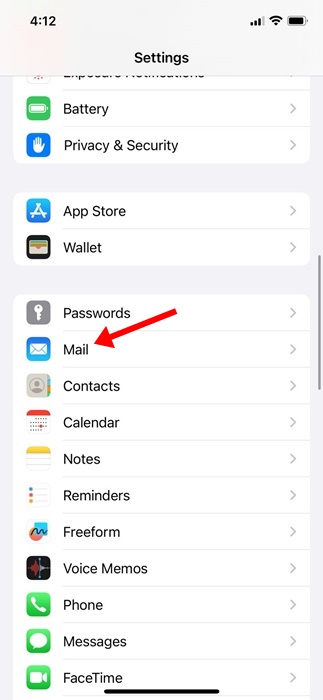
2. When the Settings app opens, scroll down and tap Mail.

Mail

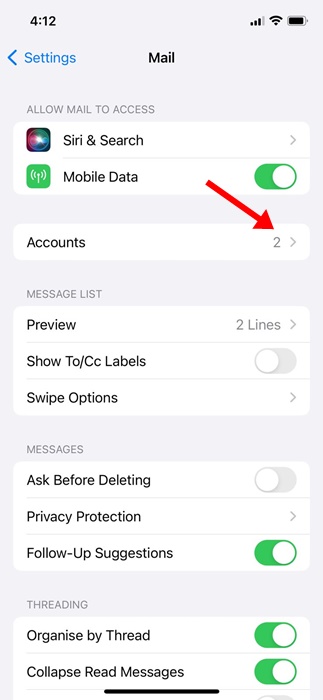
3. On the Mail screen, tap on Accounts.

Accounts

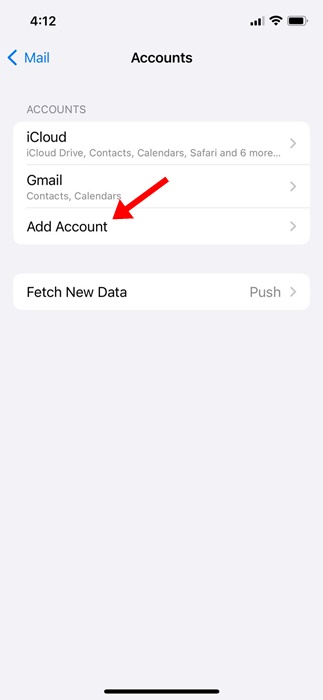
4. On the Accounts screen, tap on Add Account.

Add Account

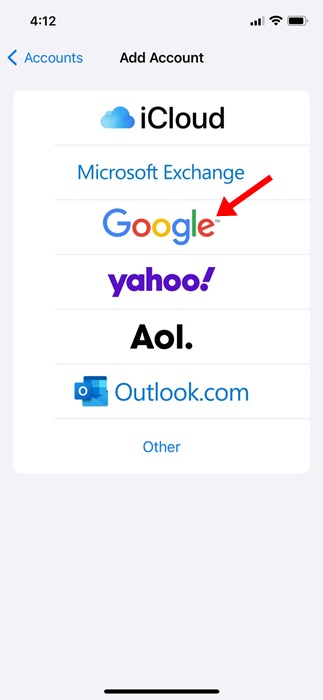
5. Next, select Google.

Google

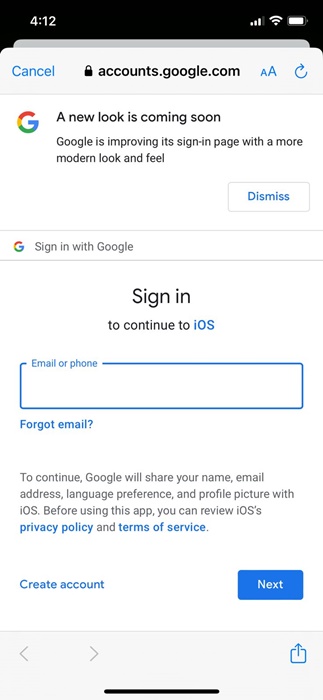
6. Now log in with the Google account where your contacts are saved.

log in with the Google account

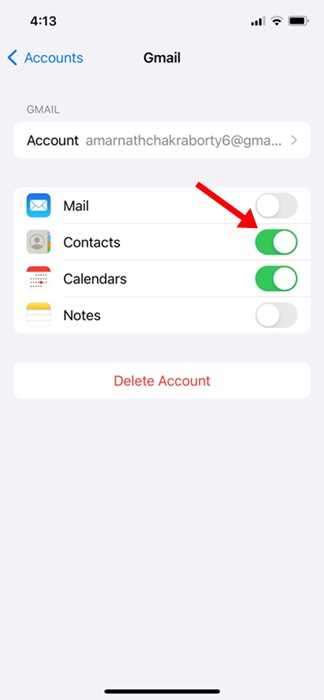
7. Once done, toggle on the switch for Contacts.

Contacts

That’s it! Now, you will find all your Google Contacts on the native Contacts app of your iPhone. This is the easiest method to sync Google Contacts to iPhone.

Sync Google Contacts to iPhone via iCloud

If you don’t want to add your Google account and still want to have all saved contacts on your iPhone, you must utilize iCloud. Here’s what you need to do.

1. To get started, launch a web browser on your PC. Next, sign in to the Google Contacts website with your Google account.

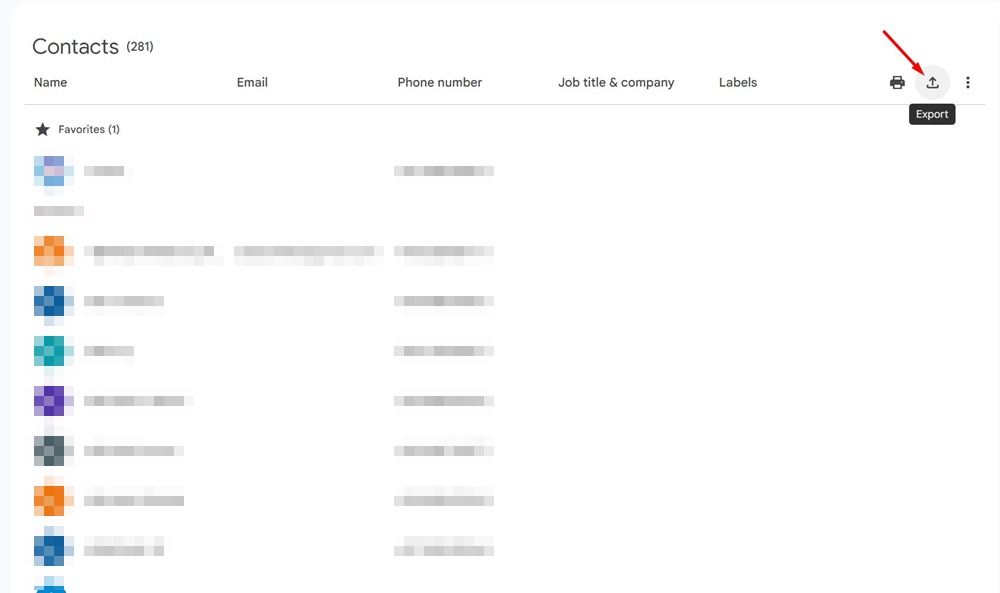
2. When the Contacts screen loads, click the Export icon at the top right corner.

Export icon

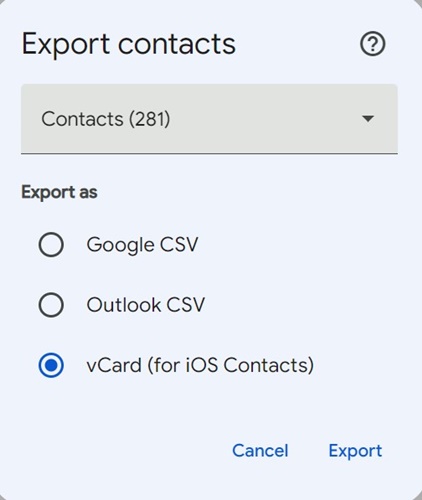
3. On the Export Contacts prompt, select vCard and click Export.

Export icon

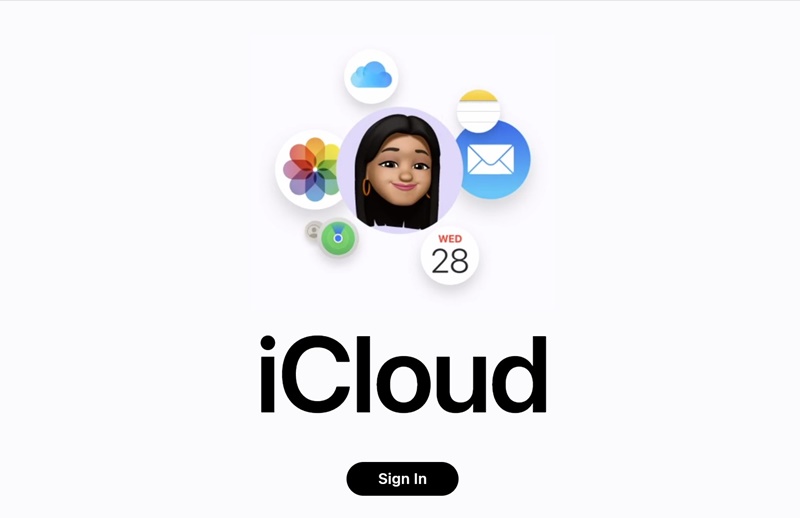
4. Once exported, visit the iCloud.com website and sign in with your Apple ID.

sign in with your Apple ID

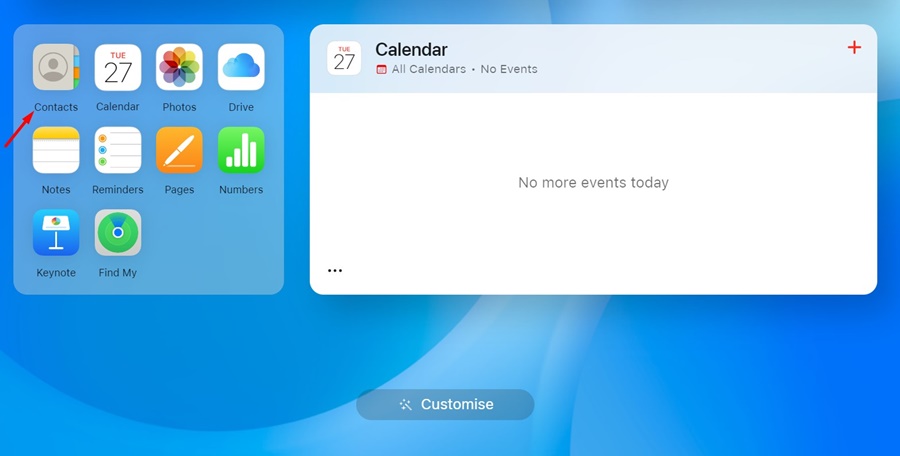
5. Once signed in, click on the Contacts.

Contacts

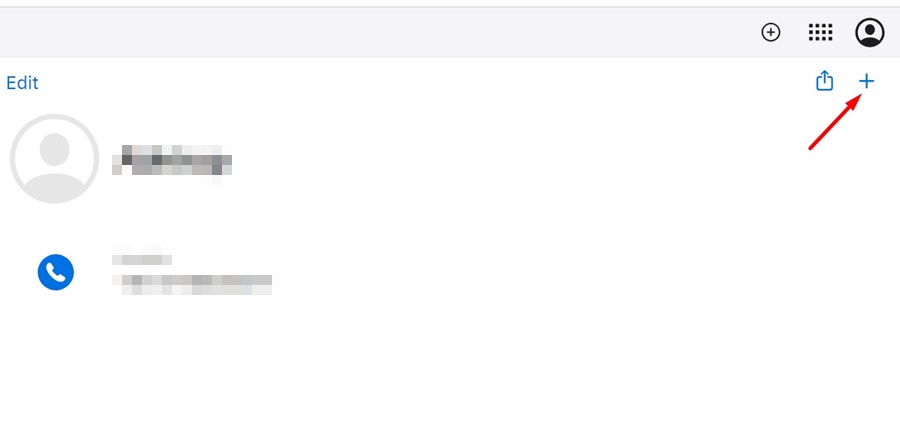
6. On the top right corner of the screen, click on the (+) icon.

(+)

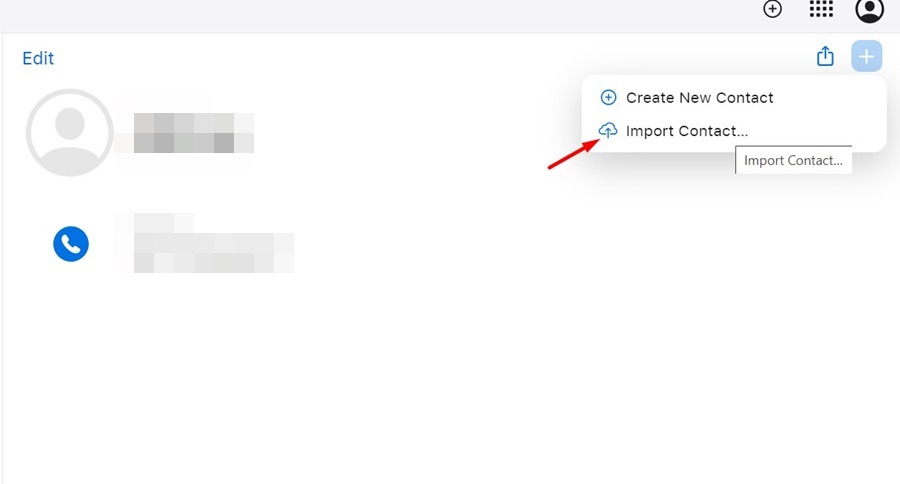
7. On the menu that appears, select Import Contact.

Import Contact

8. Now select the vCard you’ve exported.

9. Wait for a few seconds until iCloud uploads the vCard. Once uploaded, you will find all contacts.

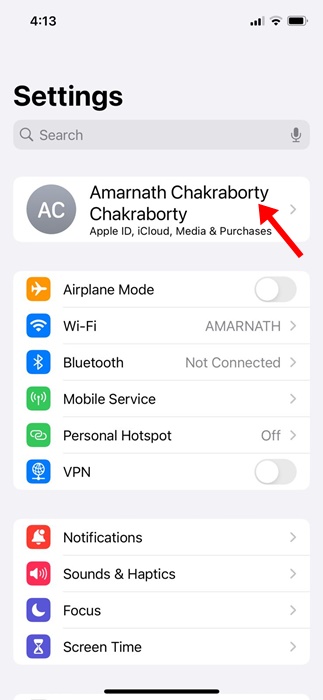
10. Next, open the Settings app of your iPhone and tap on your Apple ID at the top.

tap on your Apple ID

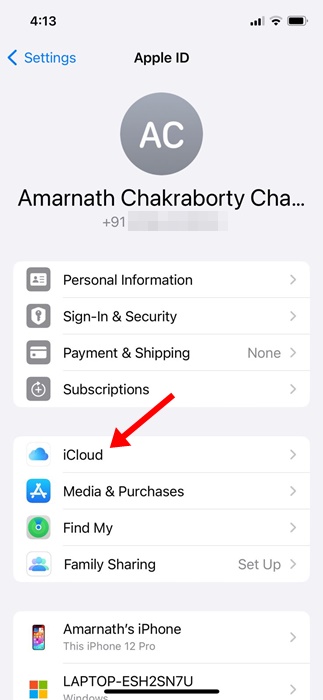
11. On the next screen, tap on iCloud.

iCloud

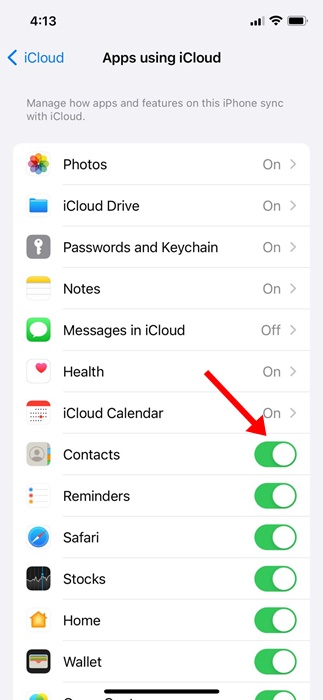
12. Next, ensure the toggle beside the Contacts is turned on.

toggle beside the Contacts

That’s it! If your iPhone is connected to a stable internet connection, all your iCloud contacts will be synced to your iPhone.

So, these are the two best methods to sync Google Contacts to iPhone. The methods we have shared require no third-party app installation and work well. If you need more help getting your Google Contacts on your iPhone, let us know in the comments below.